
If apps on your EVPAD Android TV Box are crashing, missing after a reset, or no longer updating correctly, reinstalling them is often the quickest way to restore normal use.
This guide explains how to reinstall apps on EVPAD, including how to remove an existing app, use 6868jx to download the correct APK package, reinstall the EVPAD App Store, and fix common installation problems.
When Should You Reinstall EVPAD Apps?
Reinstalling an EVPAD app is useful when the current installation is no longer working correctly or when the app has disappeared from the device. In most cases, you do not need to reset the entire TV box.
- The app keeps crashing or freezing: Corrupted app data or an incomplete update can cause repeated errors.
- The app no longer opens: If the app closes immediately or stops responding, reinstalling the correct package may resolve the problem.
- The app is missing after a reset or system update: Some apps may need to be downloaded and installed again after the device has been reset.
- An update failed: If a new version cannot install over the existing app, removing the old version first can help prevent package conflicts.
- You installed the wrong or incompatible version: Uninstall the incorrect package and reinstall the version intended for your EVPAD model and software version.
If the app is already missing from your EVPAD, you can skip the uninstall steps and go directly to the reinstallation section below.
How to Reinstall Apps on EVPAD Using 6868jx
Once the old or faulty app has been removed, you can reinstall the correct package directly from the EVPAD browser. The basic process is similar across EVPAD generations, including newer EVPAD 10, 11, and 12 Series devices.
Step 1: Open the Browser
From the EVPAD home screen, open the built-in Browser. On some models, the browser may appear under a different name or inside the All Apps menu.
Step 2: Open the 6868jx Download Page
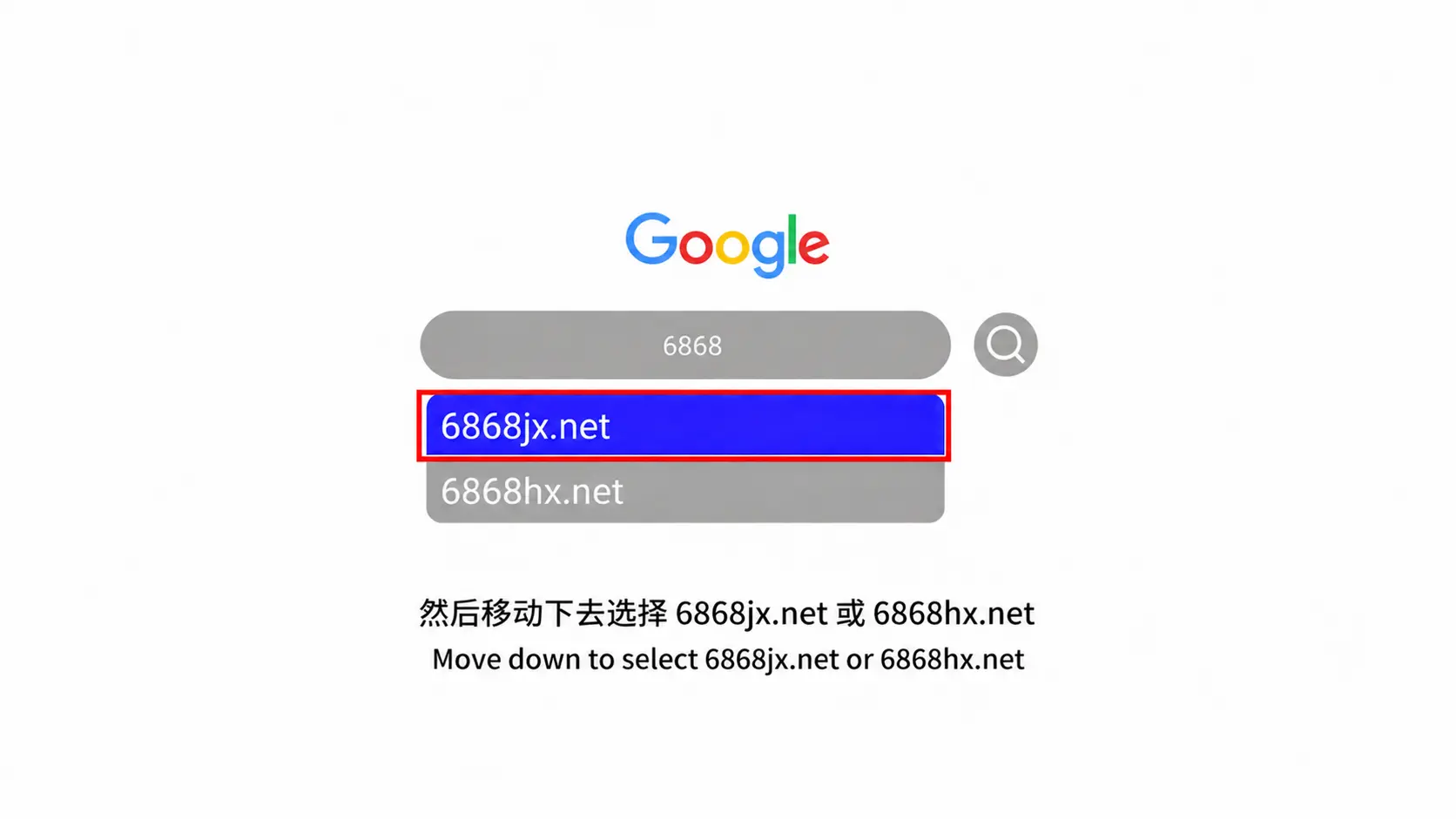
Enter 6868jx.net in the browser address bar and open the page. If that address does not load, you can also try the available 6868hx download page.
Step 3: Choose the Correct EVPAD App Package
Find the app you want to reinstall and select the package that matches your EVPAD model or software version. The available packages may differ between device generations, so avoid installing an APK intended for a different model.
Step 4: Download and Install the APK
Select the app package to start the download. Wait until the APK file has downloaded completely, then open it and choose Install.
If Android blocks the installation, allow the browser to install apps from this source. Depending on the EVPAD software version, this option may appear as Allow from this source, Install unknown apps, or Unknown Sources.
Step 5: Allow Permissions and Open the App
After the installation is complete, open the app from the EVPAD home screen or app list. If the app requests permissions during the first launch, allow the required access and confirm that the app opens normally.
Installing an app for the first time?
If you are not reinstalling an existing app and simply want to add a new application to your device, see our guide on how to install apps on EVPAD .
How to Reinstall the EVPAD App Store
If the EVPAD App Store is missing, has stopped opening, or disappeared after a reset, you can reinstall the compatible store package using the same 6868jx method.
- Open the Browser: From the EVPAD home screen, launch the built-in browser.
- Open the 6868jx download page: Enter
6868jx.netin the address bar and load the page. - Find the App Store package: Look for the store package intended for your EVPAD generation. The exact store name or version may vary depending on the device and software version.
- Download the APK: Select the correct package and wait for the download to finish completely.
- Install the App Store: Open the downloaded APK and choose Install. If prompted, allow installation from the browser.
- Open and test the store: After installation, launch the App Store from the home screen or app list and confirm that it opens normally.
If the App Store was already installed but keeps crashing, uninstall the existing version first and then reinstall the correct package for your EVPAD model.
EVPAD App Still Not Working After Reinstalling?
If an EVPAD app still does not work after reinstalling, the problem may be related to the APK file, device compatibility, storage space, permissions, or the network connection. Try the following fixes before reinstalling the app again.
APK Download Fails
- Check your internet connection: Make sure the EVPAD is connected to a stable Wi-Fi or Ethernet network.
- Check available storage: If internal storage is almost full, free up some space before downloading the APK again.
- Delete incomplete files: Remove any partially downloaded APK file and start a fresh download.
- Restart the browser: Close and reopen the browser if the download repeatedly stops or fails.
“App Not Installed”
If the APK downloads successfully but EVPAD shows an “App Not Installed” message, check the following:
- Make sure the APK package matches your EVPAD model and software version.
- Confirm that there is enough free internal storage.
- Allow the browser to install apps from unknown sources if required.
- If another version of the same app is already installed, uninstall it first to avoid package conflicts.
- Delete the current APK and download it again in case the file is corrupted.
App Still Crashes After Reinstalling
If the app installs successfully but continues to freeze, crash, or close immediately, restart the EVPAD and try opening the app again.
You can also clear the app cache from Settings > Apps. If the problem continues, confirm that you installed the correct package for your EVPAD generation, since an incompatible APK may install successfully but still fail during use.
6868jx Page Won’t Open
- Check the URL: Make sure
6868jx.netis entered correctly without extra spaces. - Check the network: Open another website to confirm that the EVPAD is connected to the internet.
- Clear the browser cache: Cached browser data can sometimes prevent the page from loading correctly.
- Try another connection: Switch between Wi-Fi, Ethernet, or a mobile hotspot if available.
- Try the alternative download page: If 6868jx is temporarily unavailable, you can try the available
6868hxpage instead.
Frequently Asked Questions
Do I Need to Uninstall an EVPAD App Before Reinstalling It?
Not always. If the app is missing from your EVPAD, you can reinstall it directly. However, if the current version is still installed but keeps crashing, fails to update, or causes package conflicts, uninstalling it first is usually the better option.
Where Can I Download EVPAD Apps Again?
You can use the EVPAD built-in browser to access the available 6868 download page and select the app package that matches your device model and software version. Always confirm compatibility before installing the APK.
What Is 6868jx on EVPAD?
6868jx is commonly used as a download page for obtaining EVPAD app packages. Users often access it when they need to restore, update, or reinstall apps that are missing or no longer working correctly.
Can I Reinstall Apps After a Factory Reset?
Yes. If apps are missing after a factory reset, you can download and install the required packages again using the EVPAD browser. Make sure you select the versions intended for your EVPAD generation.
How Do I Reinstall the EVPAD App Store?
Open the EVPAD browser, access the 6868jx download page, find the compatible App Store package, download the APK, and complete the installation. If an older or faulty version is still installed, remove it first before reinstalling the correct package.
Considering a newer EVPAD model?
If you are still using an older EVPAD and are considering an upgrade, you can explore the EVPAD 12P Malaysia Version below:
Conclusion
Reinstalling apps on EVPAD is usually straightforward once you remove any faulty version and download the correct package for your device. Using 6868jx, you can restore missing apps, reinstall the EVPAD App Store, and replace apps that are no longer working properly.
If problems continue after reinstalling, check the APK compatibility, available storage, installation permissions, and network connection before trying again. Using the correct package for your EVPAD model is the most important step for avoiding repeated installation errors.