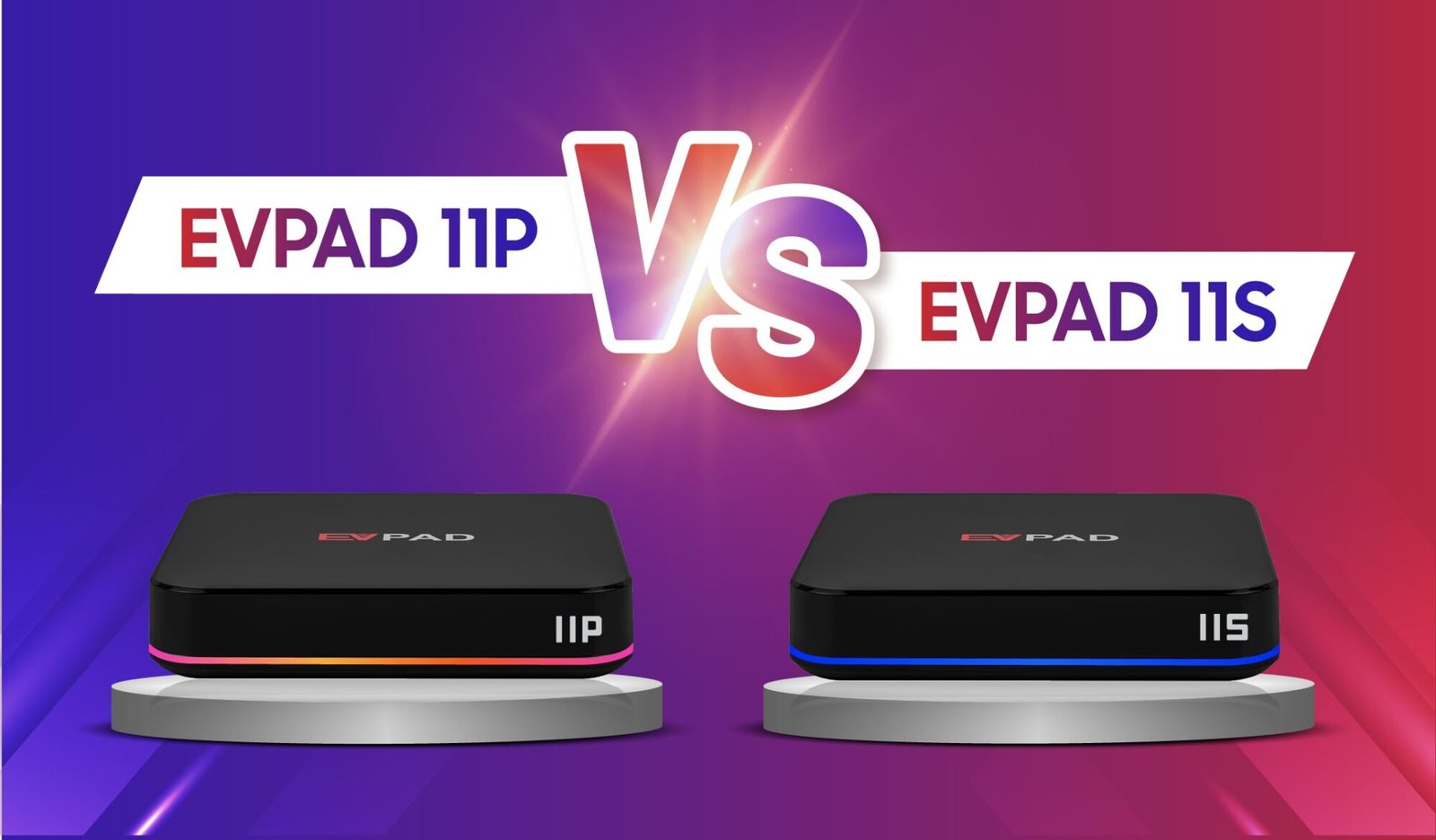

If you have just purchased an EVPAD 11P or 11S, the first setup only takes a few steps: connect the box to your TV, choose the system language, connect to Wi-Fi or Ethernet, and pair the remote control.
This guide walks you through the complete EVPAD 11 Series setup process from first connection to final checks. If you are still comparing models, you can also browse our EVPAD TV Box store.
Video Setup Guide
If you prefer to follow the setup visually, watch the video below for a quick walkthrough of the EVPAD 11P / 11S installation and first-time setup process.
The video covers the main steps, including connecting the device to your TV, completing the initial settings, connecting to the internet, and pairing the remote control. You can also follow the written instructions below for each step in more detail.
What Comes with the EVPAD Series?
Before starting the setup, check that all the main accessories are included in the box. A typical EVPAD 11P / 11S package includes:
- 1 × EVPAD 11 Series TV Box
- 1 × Remote Control
- 1 × HDMI Cable
- 1 × Power Cable
- 1 × Power Adapter
Make sure the power adapter, HDMI cable, and remote are ready before connecting the EVPAD to your TV. Package contents may vary slightly by regional version or seller, so refer to the product packaging if your accessories are different.
How to Connect EVPAD 11 Series to Your TV
Once you have all the accessories ready, connect the EVPAD 11P / 11S to your TV using the steps below.
Step 1: Connect the Power Adapter
Connect the USB end of the power cable to the power adapter, then plug the DC end into the power port on the EVPAD TV box.
Step 2: Connect the HDMI Cable
Insert one end of the HDMI cable into the HDMI port on the EVPAD and connect the other end to an available HDMI port on your TV.
Step 3: Select the Correct HDMI Input
Turn on your TV and use the TV remote to switch to the HDMI input where the EVPAD is connected. For example, if you connected the box to HDMI 2, select HDMI 2 as the TV input source.
If the screen shows No Signal, check that the HDMI cable is firmly connected and confirm that the correct HDMI input is selected.
Step 4: Turn On the EVPAD
Plug the power adapter into a wall outlet. The EVPAD should power on and display the startup screen on your TV.
Once the EVPAD Home Screen or first-time setup screen appears, you can continue with the initial system setup.
First-Time Setup for EVPAD EVPAD 11 Series
After the EVPAD 11P / 11S starts for the first time, follow the on-screen setup steps to configure the language, network connection, and remote control.
Step 1: Choose Your Language
Select the system language you want to use. Choose the option that is most comfortable for you or other family members who will use the device.
Step 2: Accept the Disclaimer
Read the on-screen disclaimer and select the option to accept it before continuing to the next setup step.
Step 3: Connect to Wi-Fi or Ethernet
Select your Wi-Fi network and enter the password to connect. If you prefer a wired connection, connect an Ethernet cable to the LAN port on the EVPAD instead.
Wait until the device confirms that it is connected to the internet before continuing.
Step 4: Pair the EVPAD Remote Control
Follow the pairing instructions shown on the screen. Press and hold the Left and Right buttons on the remote simultaneously, then press OK when prompted to complete the connection.
Keep the remote close to the EVPAD during pairing. Once the remote responds normally and you can navigate the interface, the first-time setup is complete.
EVPAD Remote Not Pairing?
If the EVPAD 11P / 11S remote does not connect during the first-time setup, try the following checks before repeating the pairing process.
Check the Batteries
Make sure the batteries are installed correctly and still have enough power. If the remote does not respond at all, replace the batteries and try again.
Move the Remote Closer to the EVPAD
Keep the remote close to the TV box while pairing. A shorter distance can help the device detect the remote more reliably.
Repeat the Pairing Buttons
Press and hold the Left and Right buttons at the same time, then press OK when the pairing prompt appears. If it does not connect on the first attempt, release the buttons and try the sequence again.
Restart the EVPAD and Try Again
If the remote still does not pair, restart the EVPAD, wait for the setup screen to load again, and repeat the pairing process.
If the remote can control basic functions but some buttons do not respond correctly, complete the setup first and test the remote again from the Home Screen.
Setup Complete — Quick Check
Before you start using the EVPAD 11P / 11S, take a moment to confirm that the main setup steps are working correctly:
- Home Screen loads normally: The EVPAD interface should appear without freezing or showing a black screen.
- Internet is connected: Confirm that Wi-Fi or Ethernet is active and online features can load.
- Remote control works: Test the navigation, OK, Back, and Home buttons.
- Apps can open: Launch one or two apps to confirm that the system is responding normally.
If all four checks are successful, your EVPAD 11P / 11S is ready for everyday use.
Looking for an EVPAD 11P?
Choose the version that matches your market and location.
EVPAD 11P International Ver EVPAD 11P Merlion Singapore Ver EVPAD 11P Malaysia Ver
Conclusion
Setting up an EVPAD 11 Series is straightforward once the device is connected correctly. Connect the power and HDMI cable, select the correct TV input, complete the language and network settings, then pair the remote control.
After setup, confirm that the Home Screen loads, the internet connection is working, and the remote responds normally. Once these checks are complete, the EVPAD 11 Series is ready to use.