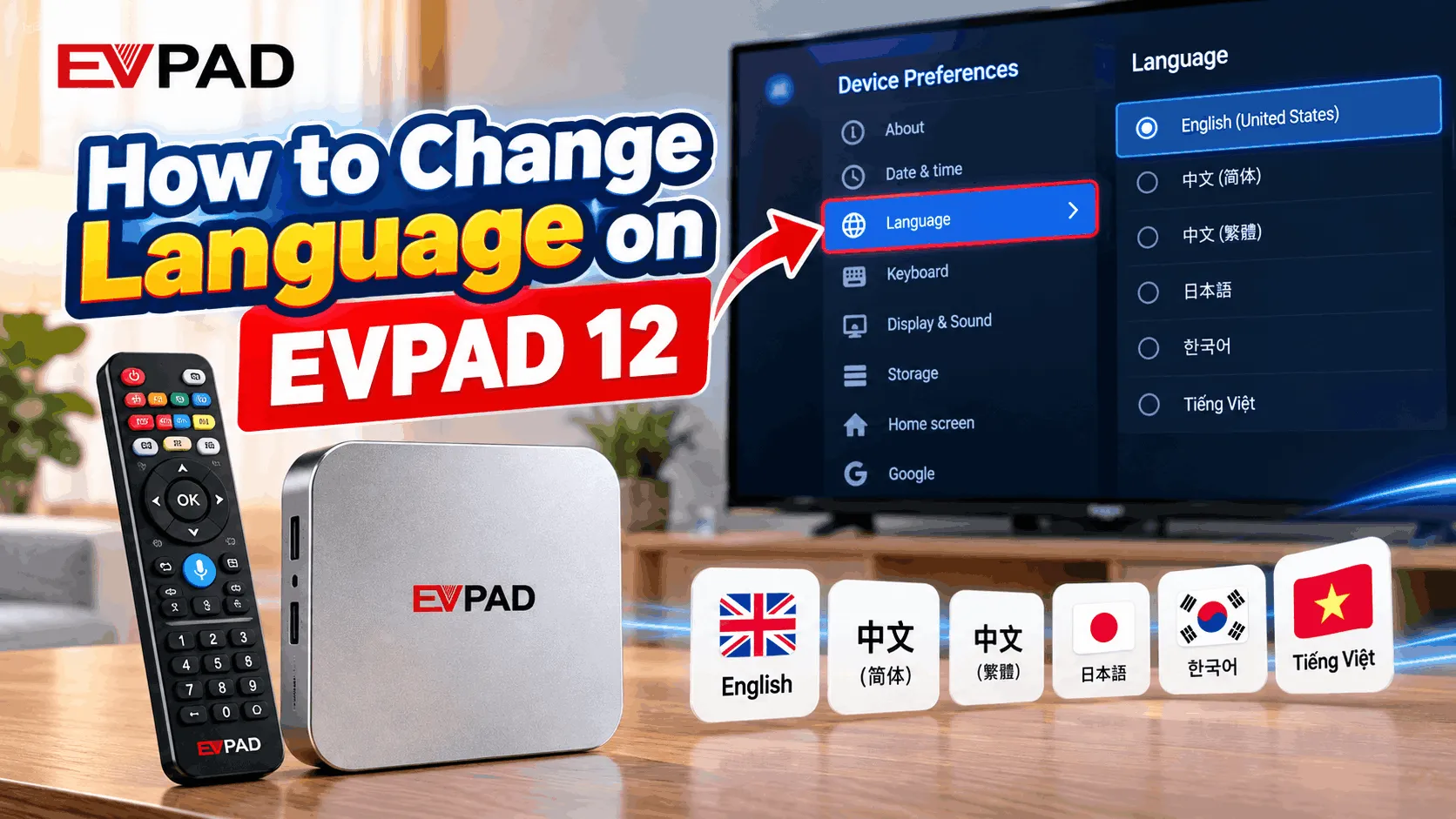
If your EVPAD 12 is displaying Chinese or another language you do not understand, you can switch the system language in just a few steps. This guide shows you exactly where to go in the settings menu to change the interface to English, Chinese, or another available language.
If you are still choosing a device, you can also browse our EVPAD TV box store to explore current models.
How to Change the Language on EVPAD 12
Follow these steps to change the system language on your EVPAD 12. The menu layout may vary slightly depending on the software version, but the basic path is the same.
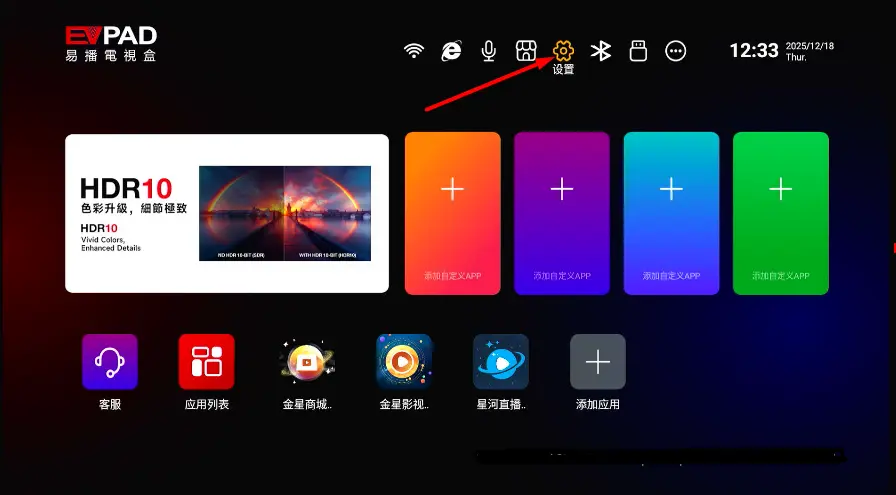
Step 1: Open Settings
From the EVPAD 12 Home Screen, use the remote control to select the Settings icon.
Step 2: Open Device Preferences
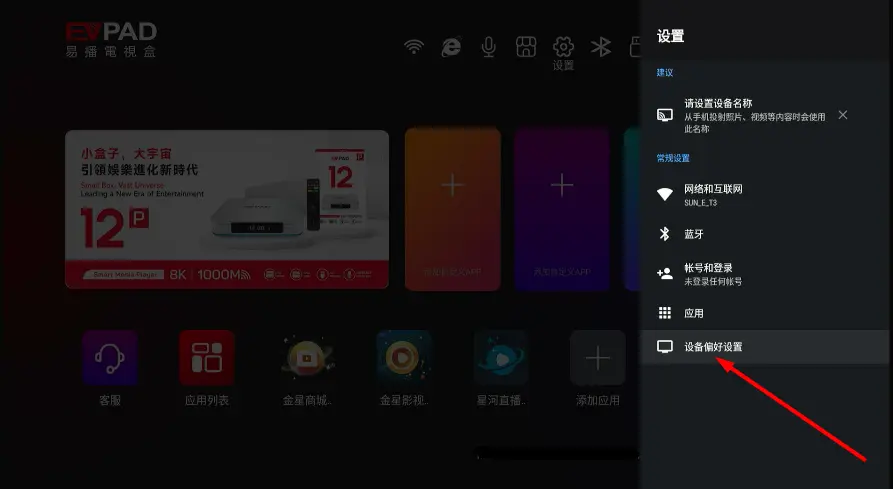
In the Settings menu, scroll down and select Device Preferences.
Step 3: Select Language
Inside Device Preferences, find and open the Language option.
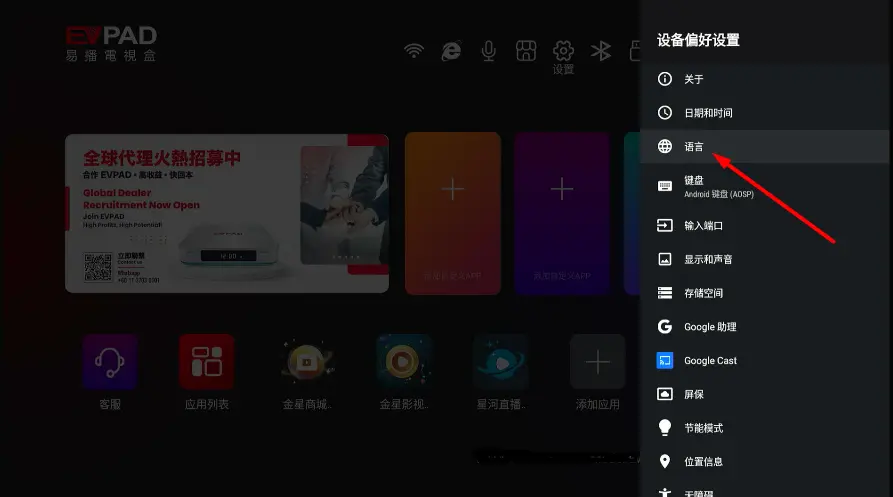
Step 4: Choose Your Preferred Language
Select English, Chinese, or another language available in the system menu. The interface should update shortly after you make your selection.
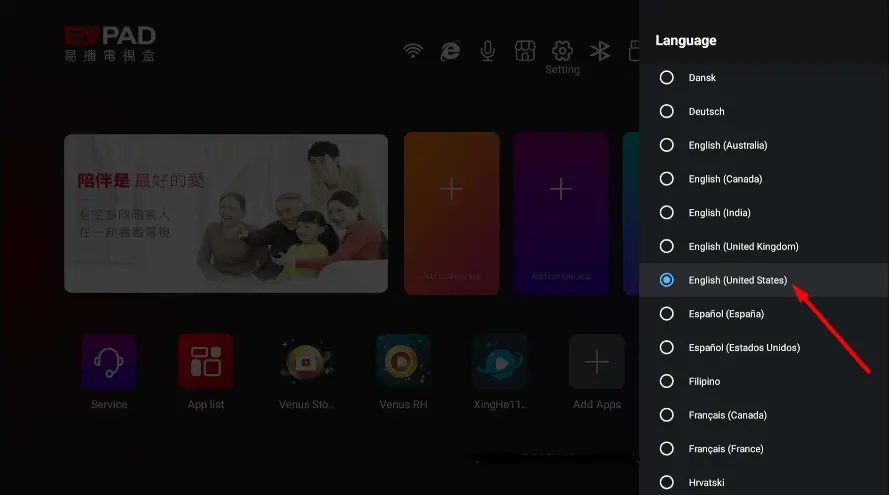
Step 5: Return to the Home Screen
Go back to the Home Screen and confirm that the menus and system settings are now displayed in the selected language.
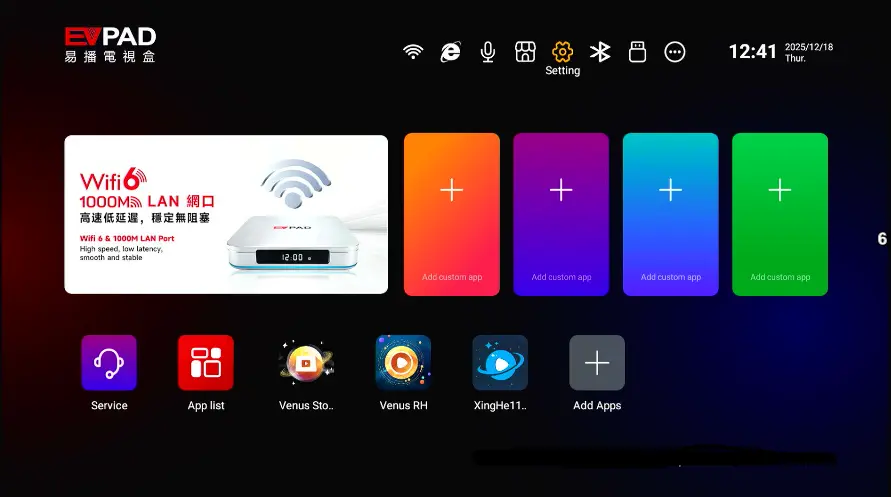
Tips When Changing the EVPAD 12 Language
- Changing the system language does not normally remove installed apps or saved data. Your existing apps and accounts should remain on the device after the language is switched.
- You can change the language again later. Simply return to Settings → Device Preferences → Language and select a different option.
- Some apps may use their own language settings. Changing the EVPAD 12 system language does not always change the language inside every third-party app.
- Menu names may vary slightly after software updates. If the wording looks different, use the screenshots and menu icons in this guide as a reference.
If you are also customizing the EVPAD interface, see our guide on how to add apps to the EVPAD Home Screen.
Conclusion
Changing the language on EVPAD 12 is a quick process: open Settings → Device Preferences → Language, then select the language you want to use.
If your device starts in Chinese, use the gear icon and the screenshots in this guide to follow the same menu path. After the change, the EVPAD 12 interface should update automatically without affecting your installed apps or saved data.