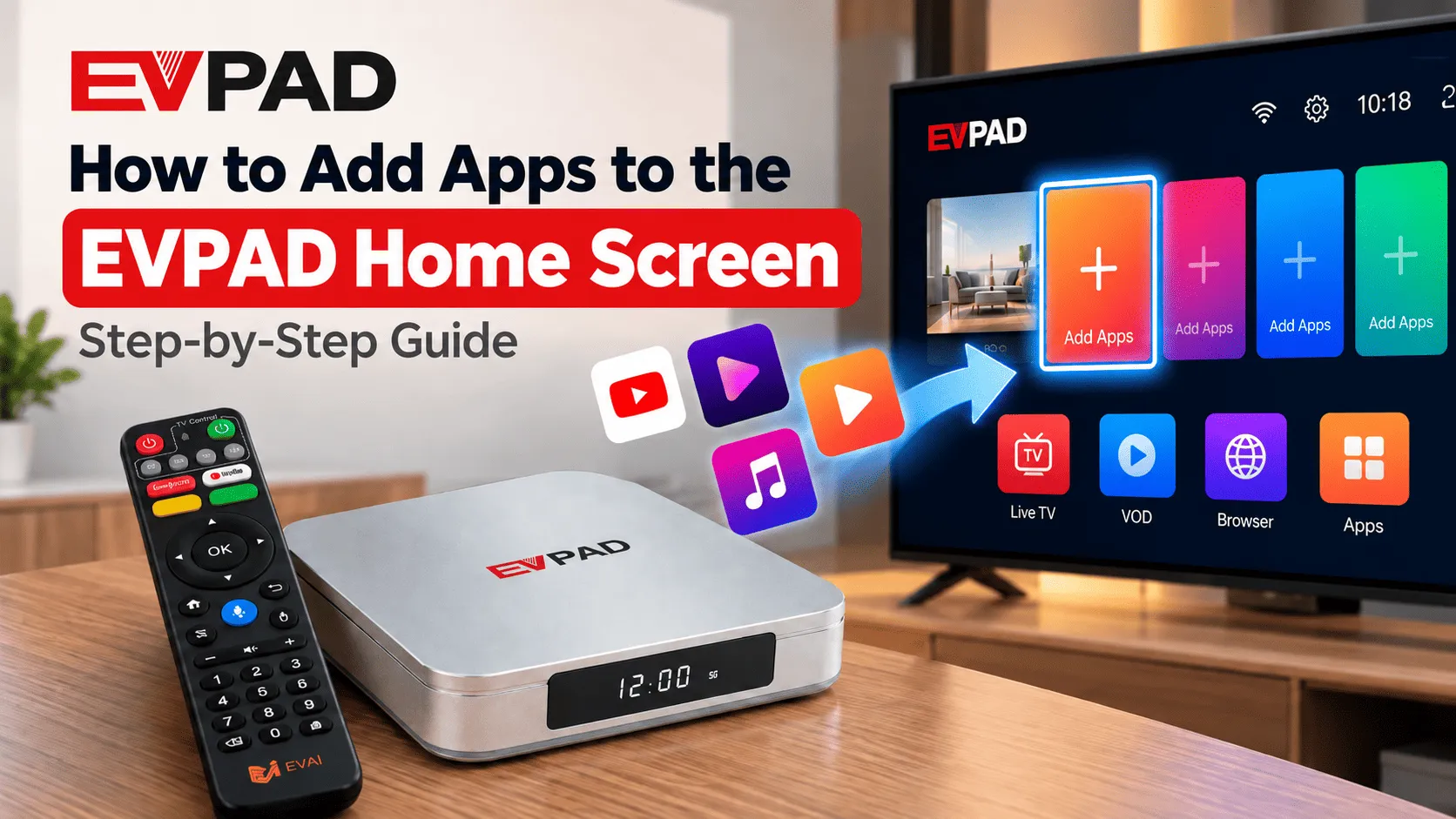
If an app is already installed on your EVPAD but does not appear on the Home Screen, you can add it manually for faster access. Depending on your model and interface version, you may see either an “Add Apps” or “Add Custom App” option on your EVPAD Android TV Box.
This guide will show you how to add apps to the EVPAD Home Screen, remove shortcuts you no longer need, and fix common issues when an installed app does not appear where expected. The process is simple and does not require reinstalling the app itself.
How to Add Apps to the EVPAD Home Screen
Depending on your EVPAD model and interface version, you may see either an “Add Custom App” option or an “Add Apps” option on the Home Screen. Both methods are designed to place an already installed app on the Home Screen for quicker access.
Method 1: Use “Add Custom App”
Step 1: Open Add Custom App
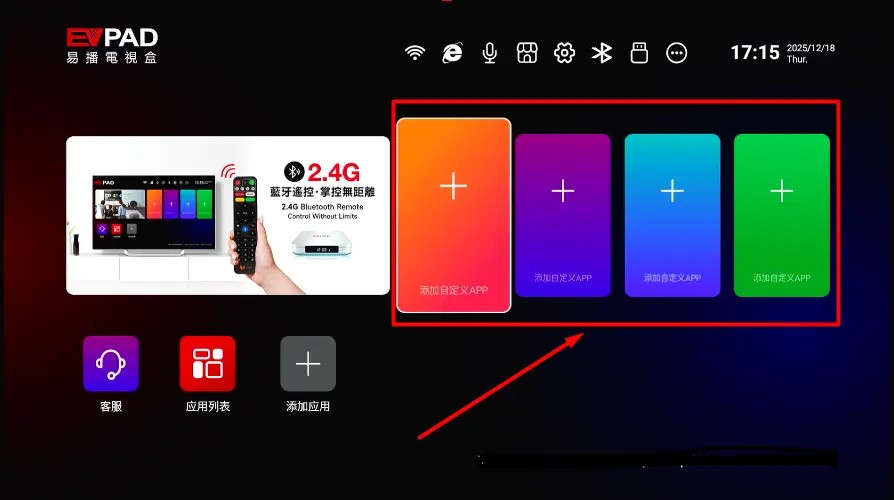
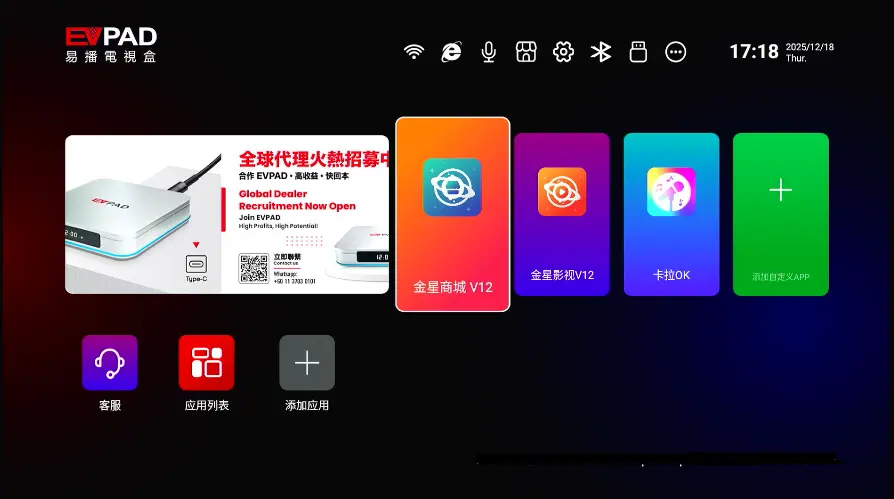
From the EVPAD Home Screen, move to the “Add Custom App” section.
Step 2: Press and Hold the OK Button
With “Add Custom App” highlighted, press and hold the OK button on your EVPAD remote. This will open the list of apps available on the device.
Step 3: Select the App You Want to Add
Move through the app list and highlight the application you want to display on the Home Screen. Press OK to select it.
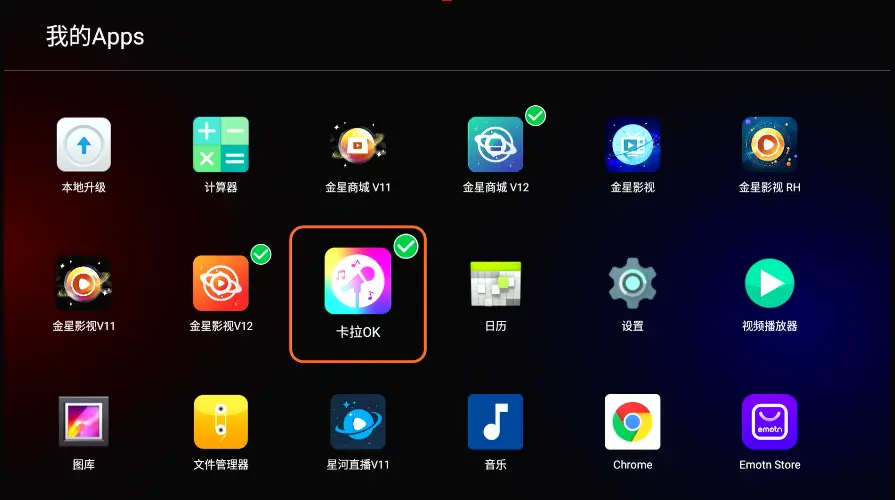
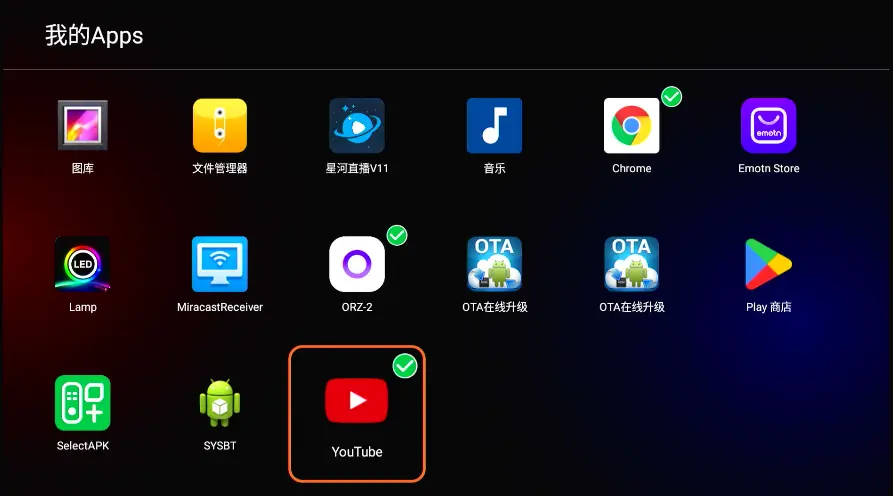
When a ✓ checkmark appears next to the app, the selection has been confirmed.
Step 4: Confirm the App on the Home Screen
Return to the EVPAD Home Screen and check whether the selected app now appears as a shortcut. You should be able to open it directly without going through the full app list.
Method 2: Use “Add Apps”
On some EVPAD interfaces, you may see “Add Apps” instead of “Add Custom App.” The process is similar and usually takes only a few steps.
Step 1: Open Add Apps
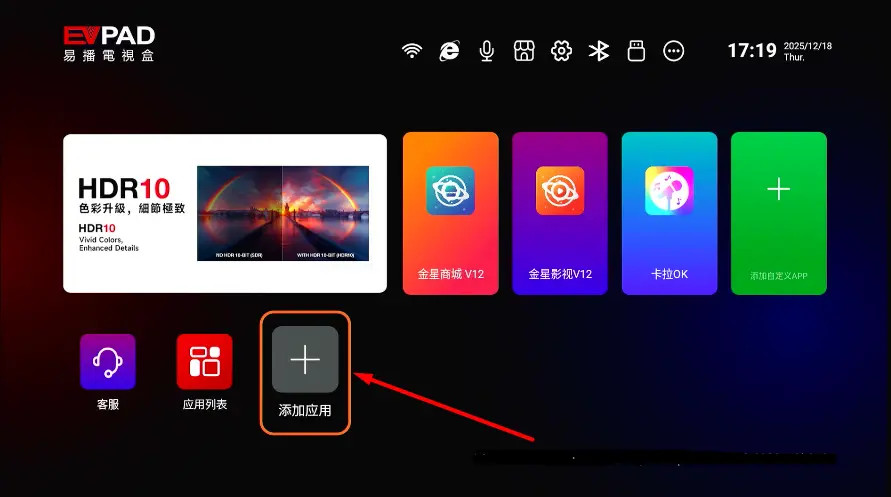
Navigate to the “Add Apps” section on the Home Screen and press OK.
Step 2: Choose an App
Find the app you want to display and press OK to select it.
Step 3: Return to the Home Screen
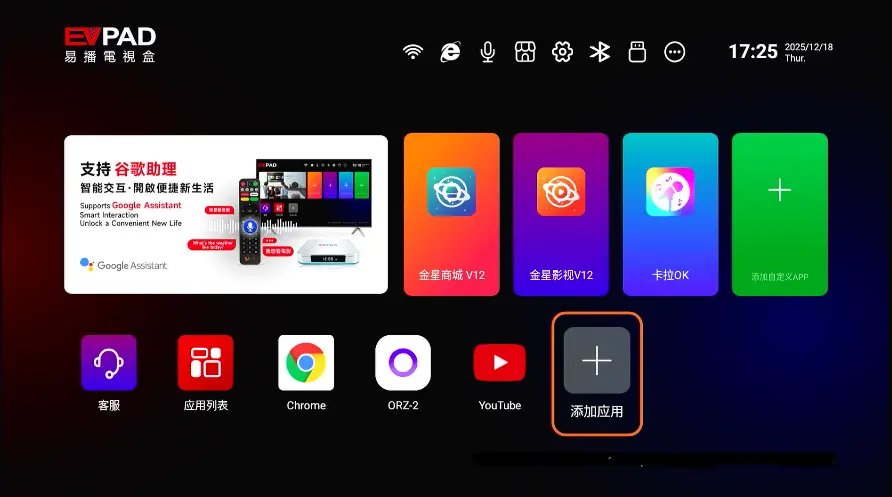
Go back to the Home Screen and confirm that the shortcut has been added successfully. You can now open the app directly from the main interface.
App Installed but Not Showing on the EVPAD Home Screen?
If an app is already installed on your EVPAD but does not appear on the Home Screen, it does not necessarily mean the installation failed. On EVPAD, installing an app and adding its shortcut to the Home Screen are two separate actions.
Try the following checks:
1. Check the Full App List
Open My Apps or the full app list and confirm that the application is installed on the device. If the app appears there, you only need to add its shortcut to the Home Screen.
2. Use Add Apps or Add Custom App Again
Return to the Home Screen and open “Add Apps” or “Add Custom App.” Find the app in the list and press OK to select it. A checkmark should appear when the app has been added successfully.
3. Restart Your EVPAD
If the app is selected but still does not appear on the Home Screen, restart the EVPAD and wait for the interface to fully load. Temporary launcher or interface issues can sometimes prevent a newly added shortcut from appearing immediately.
4. Check Whether the App Is Actually Installed
If you cannot find the app in My Apps or in the selectable app list, the application may not be installed on the device. In that case, you will need to install the app first before it can be added to the Home Screen.
Also keep in mind that the available Home Screen options may vary slightly between EVPAD models and interface versions, so the location or name of the app management section may not look exactly the same on every device.
How to Remove an App from the EVPAD Home Screen
If you no longer want an app shortcut displayed on the EVPAD Home Screen, you can remove it without uninstalling the app itself. The application will remain on the device and can be added back later if needed.
Step 1: Open Add Apps or Add Custom App
From the EVPAD Home Screen, go to “Add Apps” or “Add Custom App”, depending on which option appears on your interface.
Step 2: Find the App You Want to Remove
Move through the app list and locate the app that is currently shown on the Home Screen. Apps that have already been added may be marked with a ✓ checkmark.
Step 3: Press OK to Deselect the App
Highlight the app and press OK again. The checkmark should disappear, indicating that the shortcut has been removed from the Home Screen.
Step 4: Return to the Home Screen
Go back to the main interface and confirm that the app shortcut is no longer displayed.
Note: Removing an app from the EVPAD Home Screen does not uninstall the application or delete its data. The app will still be available in My Apps or the full app list.
Managing Apps on Your EVPAD Home Screen
Once your preferred apps are added to the Home Screen, a few simple adjustments can make the interface easier to use and keep frequently used apps within quick reach.
Keep Frequently Used Apps Easy to Access
Place the apps you use most often on the Home Screen so you do not need to open My Apps every time. This is especially helpful when setting up EVPAD for family members who prefer a simpler interface.
Avoid Adding Too Many Shortcuts
Adding too many apps can make the Home Screen feel cluttered and harder to navigate. Keep only the apps you use regularly and remove shortcuts that are no longer needed.
Remember That Removing a Shortcut Does Not Delete the App
If you remove an app from the Home Screen, the application itself will remain installed on the EVPAD. You can still open it from the full app list and add it back to the Home Screen later.
Home Screen Options May Vary by EVPAD Model
The layout, menu names, and available shortcut positions may look slightly different depending on your EVPAD model and interface version. For example, some devices may show “Add Apps”, while others use “Add Custom App.”
If you are also customizing the interface on a newer device, you can follow our guide to change the language on EVPAD 12 for another common setup adjustment.
Frequently Asked Questions
Why Is My App Not Showing on the EVPAD Home Screen?
If the app is already installed but does not appear on the Home Screen, open My Apps to confirm that it is available on the device. Then use “Add Apps” or “Add Custom App” to select it and create a Home Screen shortcut.
If the shortcut still does not appear, restart your EVPAD and check again after the Home Screen has fully loaded.
Does Adding an App to the Home Screen Install It?
No. Adding an app to the EVPAD Home Screen only creates a shortcut to an application that is already installed on the device.
If you need to install a new app first, the installation process is separate. For example, you can follow our guide to install the Free KTV app on EVPAD 12 before adding it to the Home Screen.
Will Removing an App from the Home Screen Uninstall It?
No. Removing the shortcut from the Home Screen does not uninstall the app or delete its data. The application will remain available in My Apps or the full app list and can be added back later.
Can I Add Any Installed App to the EVPAD Home Screen?
Apps that appear in the “Add Apps” or “Add Custom App” list can generally be added to the Home Screen. The available apps and shortcut positions may vary depending on the EVPAD model and interface version.
Why Does My EVPAD Show “Add Apps” Instead of “Add Custom App”?
EVPAD models and interface versions may use slightly different Home Screen layouts. Some devices display “Add Apps”, while others use “Add Custom App.” Both options serve a similar purpose: allowing you to place installed apps on the Home Screen for faster access.
Conclusion
Adding apps to the EVPAD Home Screen makes frequently used applications easier to access without opening the full app list each time. Depending on your EVPAD interface, simply open “Add Apps” or “Add Custom App,” select the app you want, and confirm the selection with the remote.
If an installed app does not appear immediately, check My Apps, confirm that the shortcut has been selected, and restart the device if necessary. You can also remove Home Screen shortcuts at any time without uninstalling the underlying application.