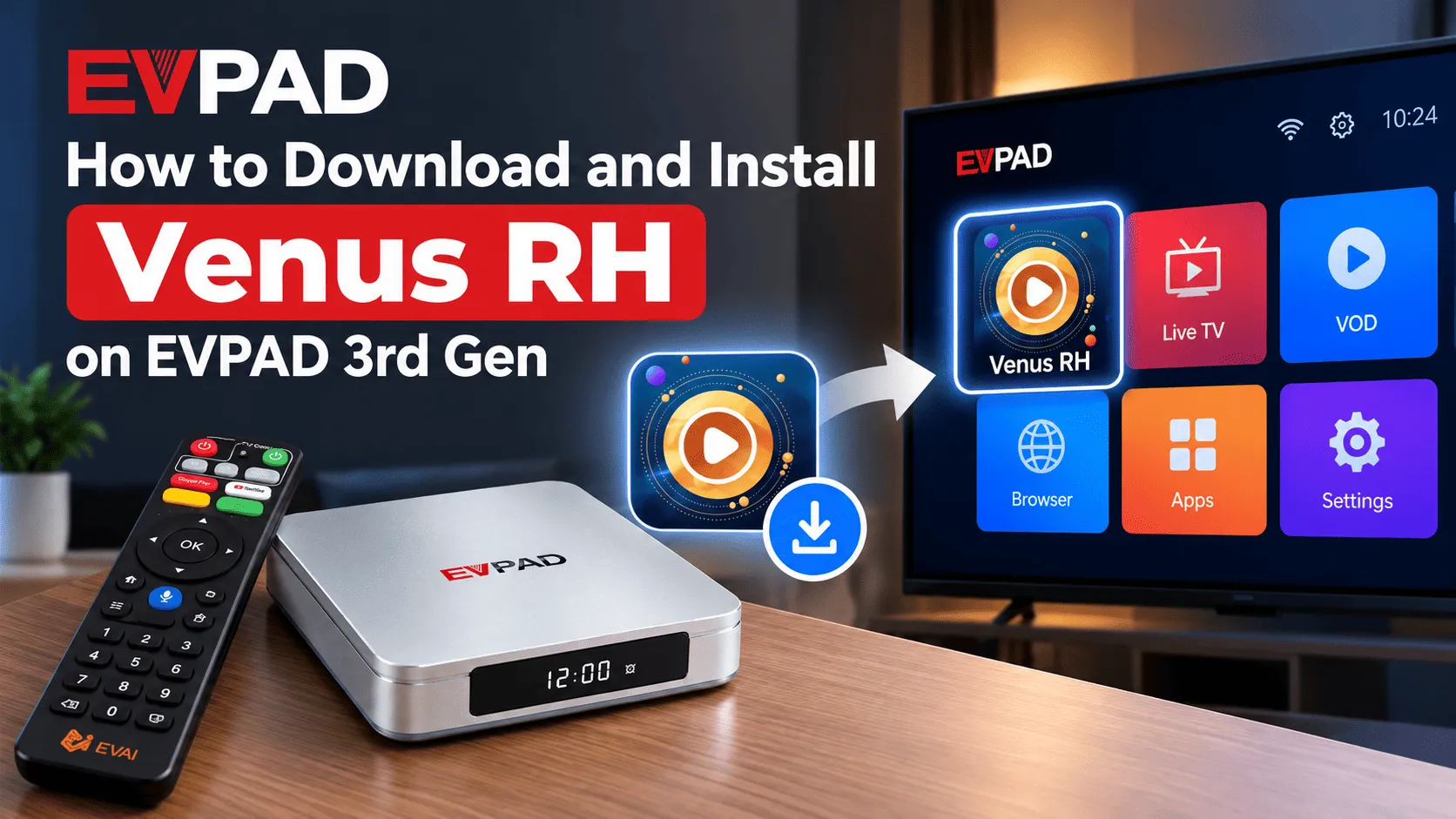
If you are still using an EVPAD 3rd Gen device, choosing the right app is important because newer EVPAD generations may use different application packages. For compatible older models, Venus RH is one of the main apps commonly used for TV and video playback.
In this guide, Svixiaoyun explains which app to use on EVPAD 3rd Gen, how to download and install Venus RH through 6868hx, and how to fix common installation or compatibility issues.
Which App Should You Use on EVPAD 3rd Gen?
For compatible EVPAD 3rd Gen devices, Venus RH is one of the main app packages commonly used for TV and video playback. It is intended for older EVPAD systems that use a different app package from newer generations.
If you are using an EVPAD 3S, 3P, or another third-generation model, Venus RH is the first app package you should check before trying newer Venus versions. The exact package may vary depending on the device model and software version, so always confirm compatibility before installation.
For newer EVPAD generations, a different Venus package may be required, which is why it is important not to install the same APK across every EVPAD model.
What Is Venus RH?
Venus RH, sometimes referred to as Venus TV RH, is an application package used on supported EVPAD devices, particularly models from the EVPAD 3rd generation.
For compatible models such as the EVPAD 3S and EVPAD 3P, Venus RH can be reinstalled through the EVPAD download page when the application has been removed, is missing after a reset, or needs to be installed again.
It is important to note that Venus RH is not a universal package for every EVPAD generation. Newer EVPAD models may use different Venus application versions or packages, so the correct installation method should always match the EVPAD model being used.
For supported 3rd-generation devices, the following steps will show you how to download and reinstall Venus RH through 6868hx.
How to Download and Install Venus RH on EVPAD 3rd Gen
If Venus RH is missing from your EVPAD 3rd Gen device or needs to be installed again, you can download the package through the EVPAD download page using the built-in browser. Make sure your EVPAD is connected to a stable internet connection before starting.
1. Open the Browser on Your EVPAD
From the EVPAD home screen, open the built-in Browser. If you do not see it on the home screen, check the full app list on your device.
2. Access the 6868hx Download Page
Enter the 6868hx download page in the browser. Wait for the page to load completely before selecting an application.
Because different EVPAD generations may use different application packages, make sure you are following the download option intended for your EVPAD 3rd Gen model.
3. Find and Download Venus RH
Locate Venus RH on the download page and select the appropriate package. Start the download and wait until the installation file has been fully downloaded.
Avoid closing the browser or disconnecting the device from the internet while the file is downloading, as an incomplete download may cause the installation to fail.
4. Install Venus RH
Once the download is complete, open the downloaded file and select Install when prompted. If your EVPAD asks for permission to install the application, follow the on-screen instructions to continue.
Wait for the installation to finish before returning to the home screen.
5. Open Venus RH
After installation, open Venus RH from the app list. On the first launch, the application may request certain permissions required for normal operation. Review the prompts and allow the permissions needed by the app.
If Venus RH does not appear on the home screen immediately after installation, check the full app list first. You can also follow our guide to add apps to the EVPAD home screen.
Note: Venus RH is mainly associated with compatible older EVPAD models. Newer generations use different Venus packages. For example, EVPAD 12 users can refer to our guide on how to install Venus V12 on EVPAD 12 instead.
Venus RH Not Installing or Not Working?
If Venus RH does not install correctly or stops working on your EVPAD 3rd Gen device, the issue is usually related to the download file, device permissions, internet connection, or app compatibility. Try the following checks before reinstalling the application.
Check Your Internet Connection
Make sure your EVPAD is connected to a stable Wi-Fi or Ethernet connection. If the connection is unstable, the installation file may not download completely, which can cause the installation to fail.
Download the Installation File Again
If the installer cannot be opened or shows an error, delete the downloaded file and return to the 6868hx download page to download Venus RH again. A corrupted or incomplete file is one of the most common reasons an installation does not complete successfully.
Check Installation Permissions
Your EVPAD may require permission before installing an application downloaded through the browser. If an installation warning appears, check the device settings and allow installation from the browser or the relevant source, then try again.
Restart Your EVPAD
A simple restart can clear temporary system errors that prevent an application from installing or opening properly. Restart the device, wait for the home screen to fully load, and then open Venus RH again.
Reinstall Venus RH
If Venus RH opens but frequently crashes, freezes, or does not load correctly, uninstall the existing application first and then reinstall a fresh copy from the EVPAD download page.
Before reinstalling, make sure you are downloading the package intended for a compatible EVPAD 3rd Gen model. Installing a package designed for another EVPAD generation may result in installation errors or unstable performance.
Venus RH Installed but Cannot Be Found
If the installation completes successfully but Venus RH is not visible on the main screen, open the full app list and check whether the application appears there. In some cases, newly installed apps are not automatically added to the EVPAD home screen.
If the issue continues after reinstalling Venus RH, check whether other applications on the device are working normally. This can help determine whether the problem is limited to Venus RH or related to the EVPAD system itself.
FAQ
What app should I use on an EVPAD 3rd Gen device?
For supported EVPAD 3rd-generation models, Venus RH is one of the application packages associated with these older devices. The correct package may depend on the specific EVPAD model, so it is important to use the version intended for your device.
Where can I download Venus RH for EVPAD 3rd Gen?
Venus RH can be downloaded through the EVPAD download page using the built-in browser. For compatible 3rd-generation devices, 6868hx can be used to access the relevant download options and reinstall the application when needed.
What is Venus RH on EVPAD?
Venus RH, also known as Venus TV RH, is an application package used on certain older EVPAD devices. It should not be confused with newer Venus packages designed for later EVPAD generations.
Can I install Venus V12 on an EVPAD 3rd Gen device?
Venus V12 is intended for newer EVPAD generations and should not be treated as a direct replacement for Venus RH on an EVPAD 3rd Gen device. Using the application package that matches your EVPAD generation helps reduce compatibility and installation problems.
Why does the Venus RH installation fail?
Installation may fail because of an incomplete download, unstable internet connection, installation permission settings, or an incompatible application package. Delete the failed installation file, restart the device, and download the correct package again before retrying.
Can I reinstall Venus RH after resetting my EVPAD?
Yes. If the application is removed after a factory reset, you can use the EVPAD browser to access the download page again and reinstall the appropriate package for your device.
Looking for a newer EVPAD model?
If you are upgrading from an older EVPAD 3rd Gen device, you can explore the latest EVPAD 12P options below.
View EVPAD 12P International Version View EVPAD 12P Merlion Singapore Version
Conclusion
If you are using a compatible EVPAD 3rd Gen device, Venus RH can be downloaded and reinstalled through the EVPAD download page using 6868hx. The key is to choose the application package intended for your EVPAD generation rather than installing a package designed for a newer model.
If the installation does not work, check your internet connection, installation permissions, and downloaded file before trying again. In many cases, downloading a fresh copy of the correct package can resolve common installation problems.