Venus V12 is an app used on supported EVPAD devices for accessing the current EVPAD video platform. If you use an EVPAD Android TV Box and need to install Venus V12, the process is straightforward: open the built-in browser, access the download page, select the correct package, and install the APK.
This guide explains how to install Venus V12 on EVPAD, where to download the correct package, and how to fix common installation or launch errors.
What Is Venus V12?
Venus V12, also known as JinXing Video V12, is an EVPAD application designed for use on supported EVPAD TV boxes. It provides access to the main video interface and entertainment functions available on compatible devices.
Venus V12 should not be confused with the Venus Mobile App. Venus V12 is intended for EVPAD TV boxes, while the Venus Mobile App is designed for supported Android smartphones.
The exact Venus V12 package may vary depending on the EVPAD generation and software version, so it is important to choose the version that matches your device before installation.
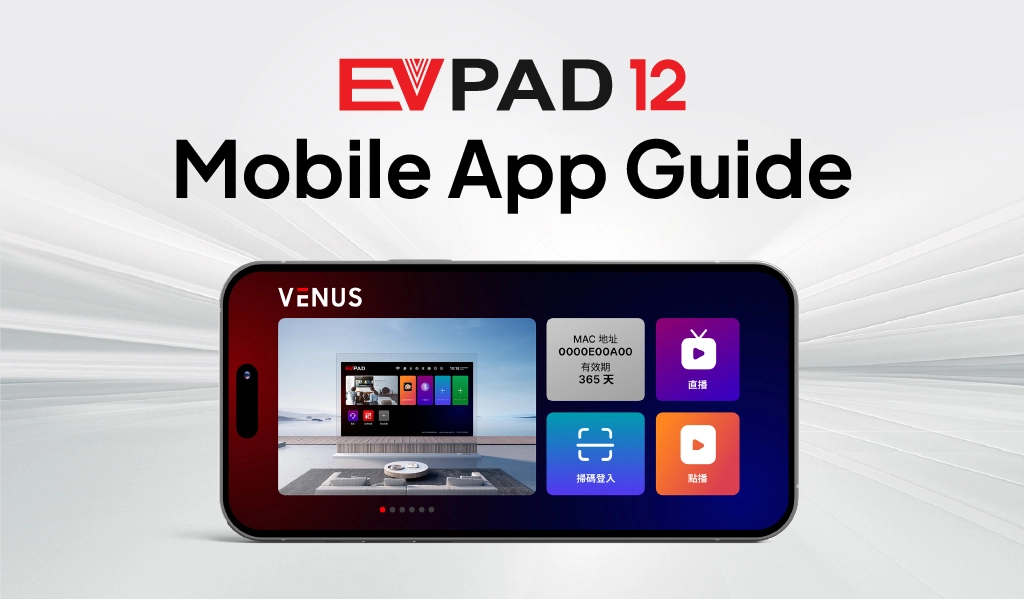
Which EVPAD Models Support Venus V12?
Venus V12 is mainly intended for newer EVPAD generations, with the EVPAD 12 Series being the primary devices associated with this version. Depending on the model and software version, other EVPAD generations may use a different Venus or JinXing Video package rather than the exact same V12 installation file.
For this reason, always check that the download package matches your EVPAD model before installing it. Using an APK designed for a different generation may result in an installation error or cause the app to close unexpectedly.
If you are using an older third-generation device, the required app setup is different. You can refer to our EVPAD 3rd Gen TV app guide for the appropriate installation method and compatible applications.
How to Download and Install Venus V12 on EVPAD
Installing Venus V12 on a supported EVPAD device only takes a few steps. The process is completed directly from the built-in browser, so you do not need to use the Google Play Store.
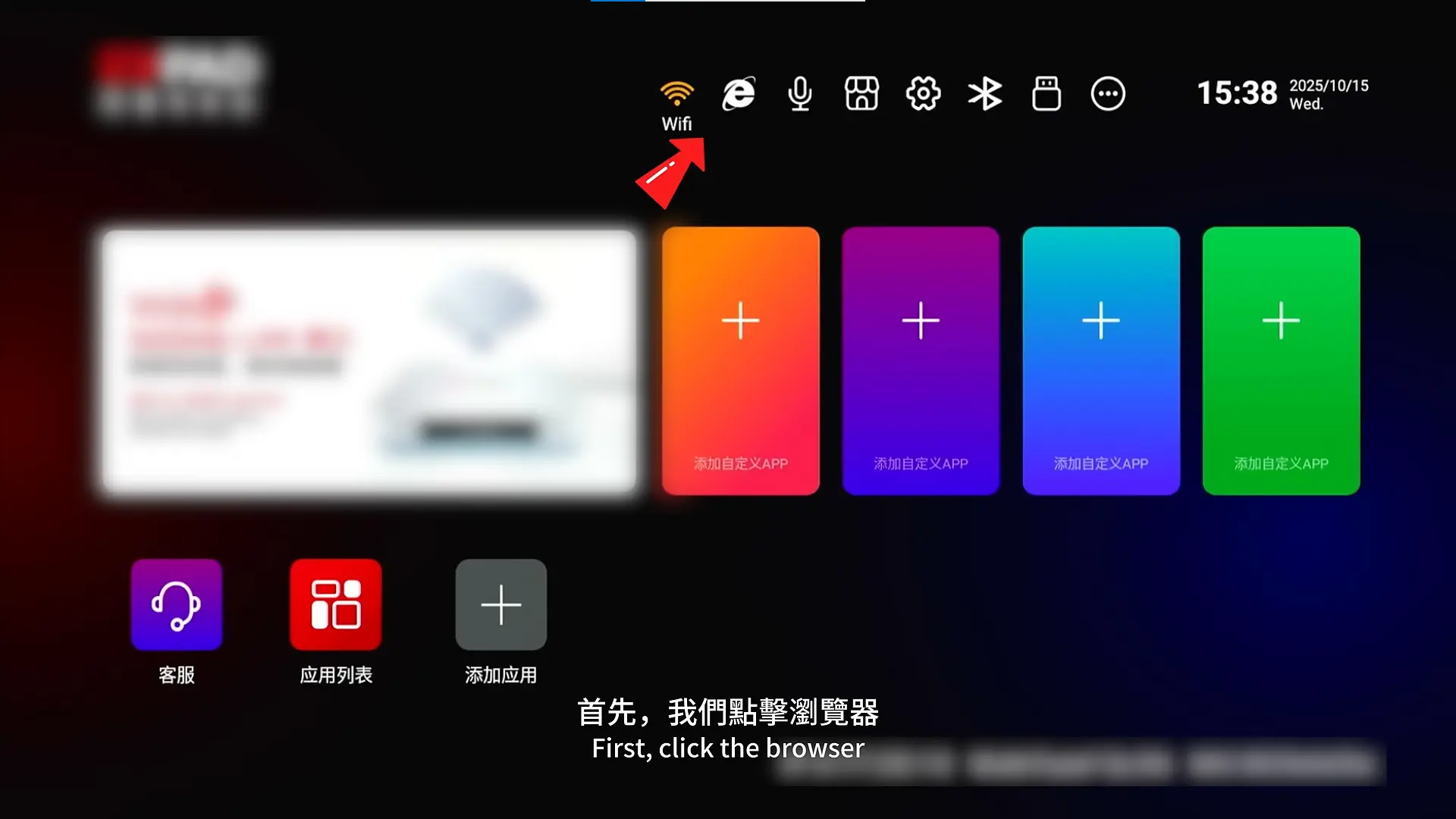
Step 1: Open the Browser on Your EVPAD
Turn on your EVPAD and go to the home screen. Find and open the built-in Browser application.
Step 2: Open the Venus V12 Download Page
Enter 6868jx.net or 6868hx.net in the browser address bar and open the download page.
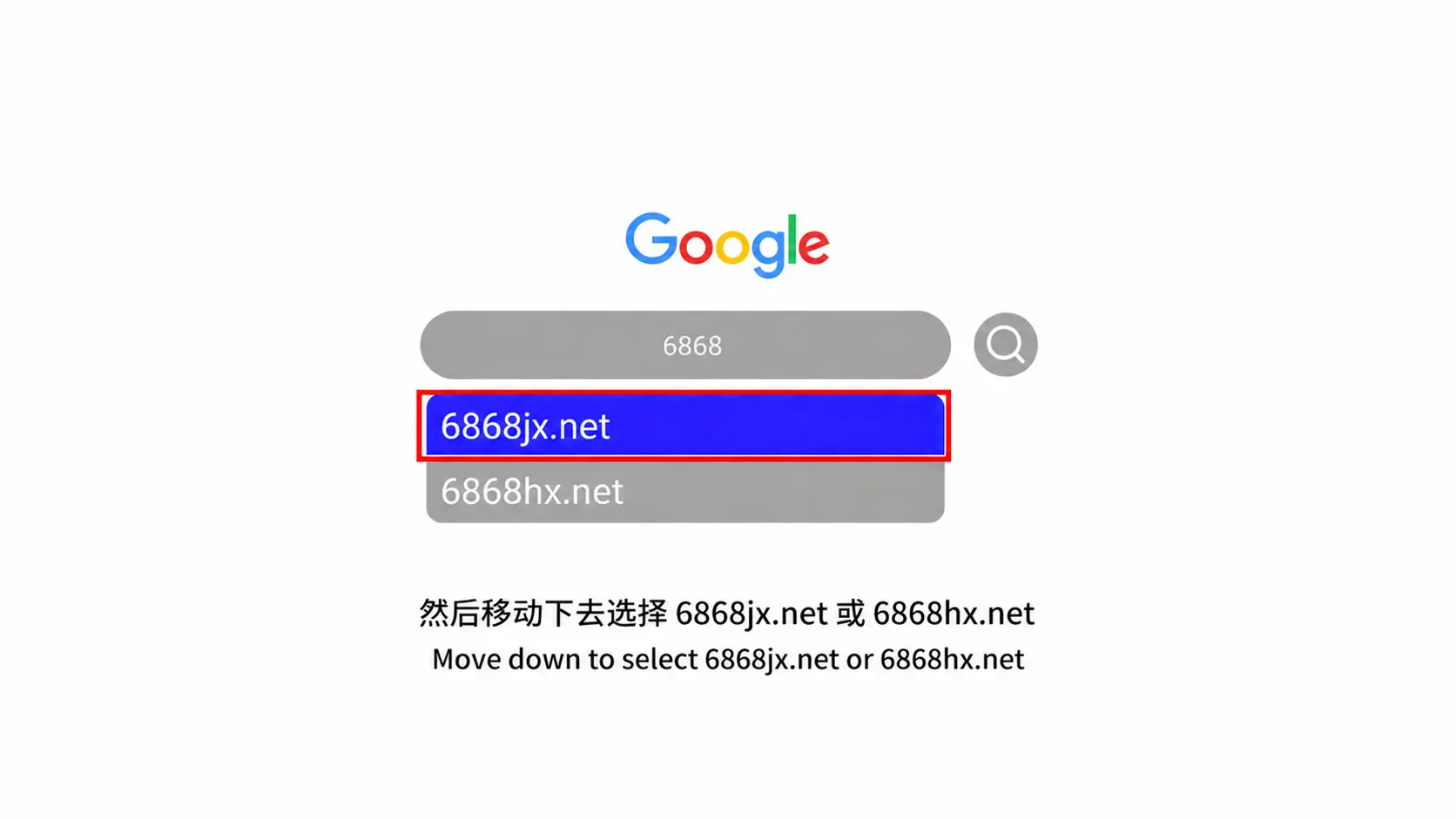
If one address does not load, try the other one. Make sure the URL is entered correctly without extra spaces or characters.
Step 3: Select Venus V12
On the download page, find Venus V12 or JinXing Video V12 and select the package intended for your EVPAD model or software version.
Do not install a package intended for a different EVPAD generation, as an incompatible APK may fail to install or may not run correctly after installation.
Step 4: Download and Install the Venus V12 APK
Select the Venus V12 package to begin the download. Wait until the APK file has downloaded completely, then open the file and choose Install.
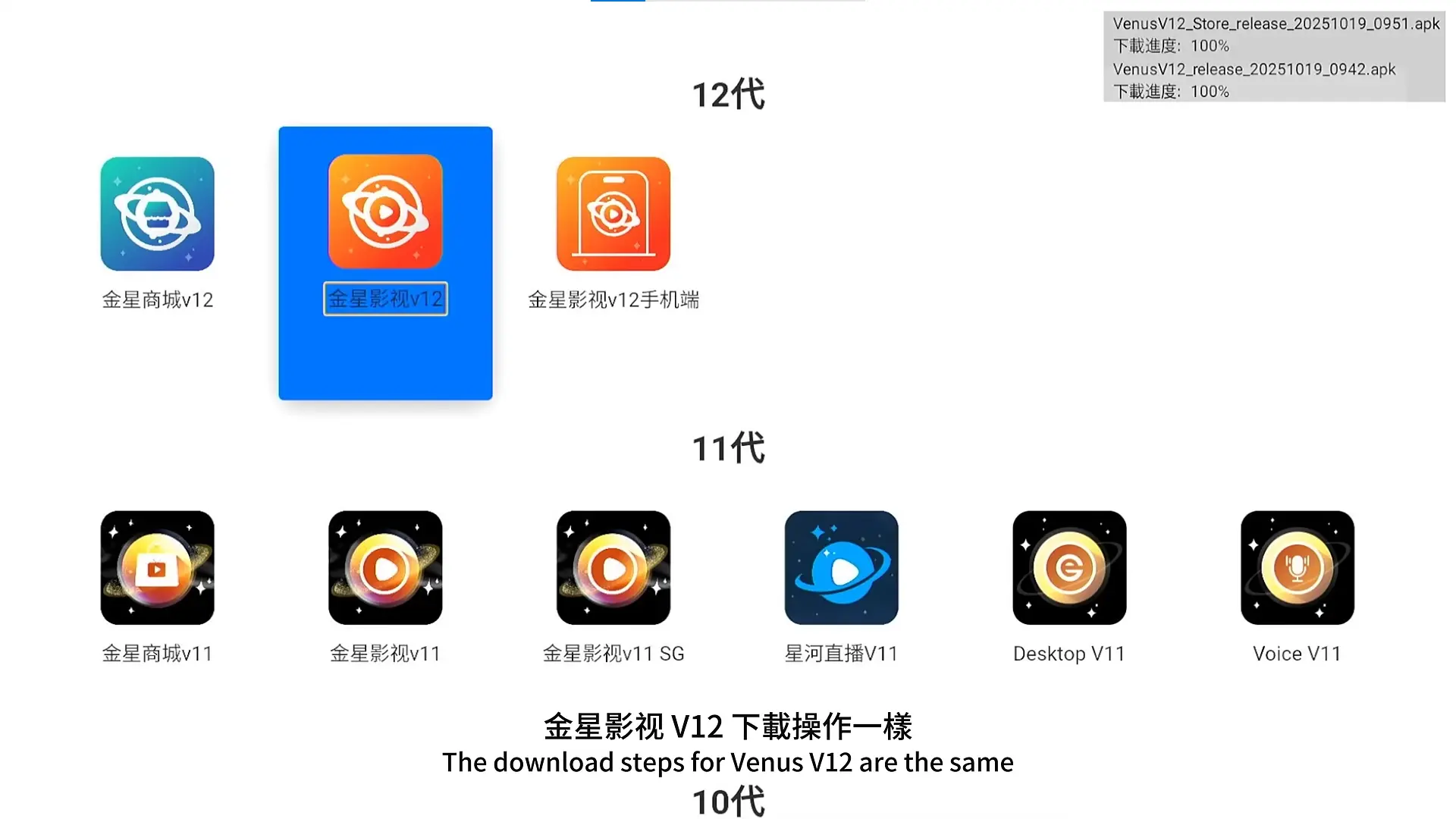
If Android blocks the installation, allow the browser to install apps from this source. Depending on your EVPAD software version, this setting may appear as Allow from this source, Install unknown apps, or Unknown Sources.
Step 5: Allow Permissions and Open Venus V12
After installation is complete, open Venus V12 from the EVPAD home screen. If the app requests access permissions during the first launch, select Allow where required for the app to function normally.
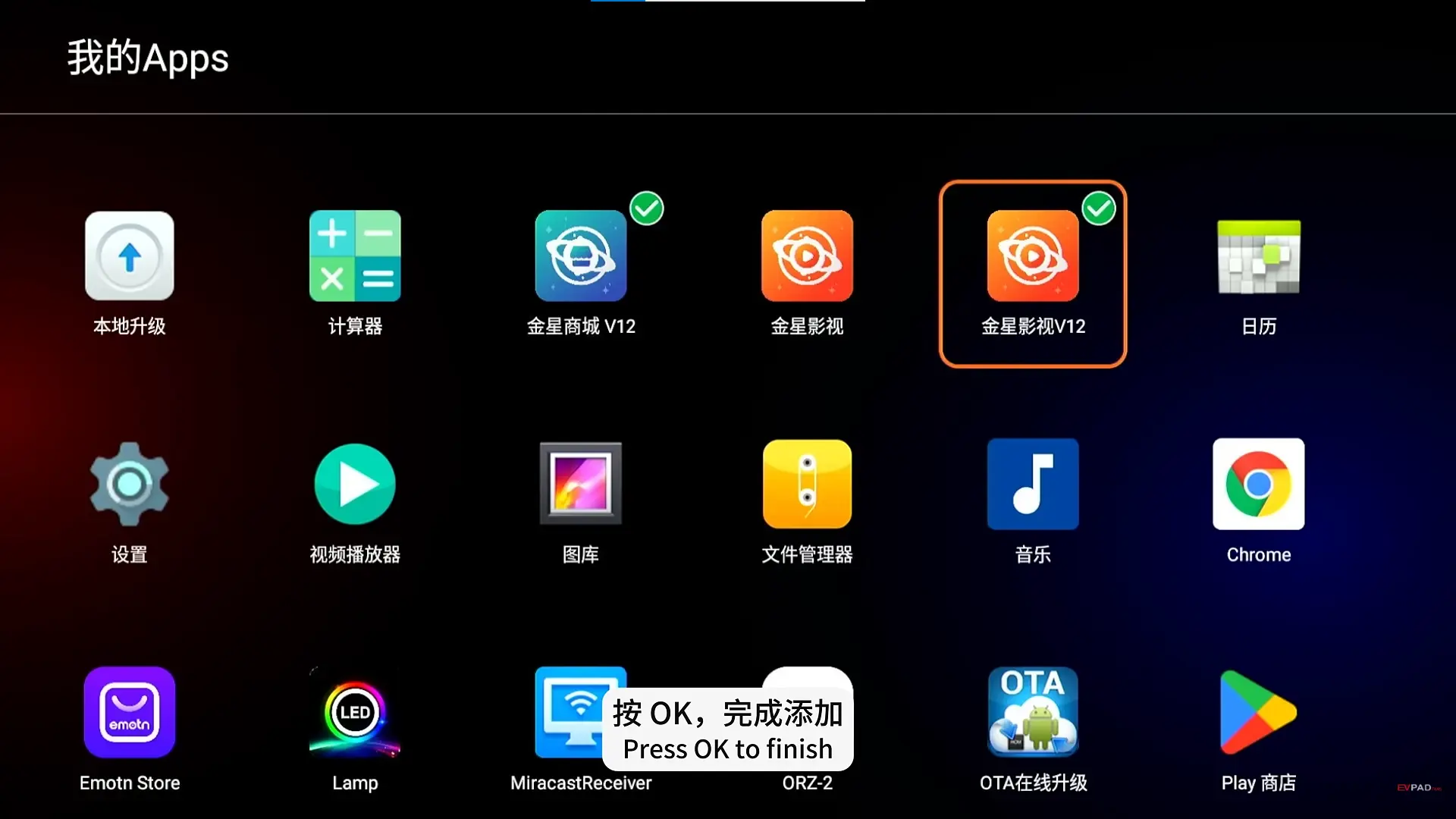
If Venus V12 does not install, does not appear on the home screen, or closes after opening, continue to the troubleshooting section below.
Venus V12 Not Installing or Not Working?
If Venus V12 fails to download, install, or open correctly on your EVPAD, the problem is usually related to the download file, device compatibility, storage space, or installation permissions. Try the following fixes in order.
Venus V12 Download Page Won’t Open
- Check the internet connection: Make sure your EVPAD is connected to Wi-Fi or Ethernet and that other websites can open normally.
- Check the URL: Re-enter
6868jx.netor6868hx.netcarefully and make sure there are no extra spaces or typing errors. - Restart the browser: Close the browser completely, reopen it, and try accessing the page again.
- Clear the browser cache: If the page still does not load correctly, clear the browser cache from the EVPAD app settings and try again.
- Try another network: If possible, switch between Wi-Fi, Ethernet, or a mobile hotspot to rule out a local network issue.
“App Not Installed” or Installation Failed
If the Venus V12 APK downloads successfully but cannot be installed, check the following:
- Re-download the APK: Delete the existing file and download it again in case the original download was incomplete or corrupted.
- Check device compatibility: Make sure the Venus V12 package is intended for your EVPAD model and software version.
- Check available storage: Free up internal storage if your device is running low on space.
- Allow APK installation: Make sure the browser has permission to install apps from unknown sources.
- Check for an existing version: If another version of the same app is already installed, it may conflict with the new package.
Venus V12 Opens and Immediately Closes
If Venus V12 installs but closes immediately after launch, restart your EVPAD first. If the problem continues, clear the app cache and try opening it again.
An incompatible package can sometimes install successfully but still fail to run correctly. If this happens, remove the app and install the version intended for your EVPAD model.
Venus V12 Does Not Appear After Installation
If the installation finishes but you cannot see the Venus V12 icon on the home screen, open the EVPAD app list or application manager and check whether the app is installed there.
If it is listed but not visible on the launcher, restart the device. If the app is not listed at all, the installation may not have completed successfully, so download the APK again and repeat the installation process.
Frequently Asked Questions
Where can I download Venus V12?
You can download Venus V12 through the EVPAD browser using the available 6868 download page. Make sure you select the package that matches your EVPAD model and software version before installing it.
Is Venus V12 the Same as the Venus Mobile App?
No. Venus V12 is designed for supported EVPAD TV boxes, while the Venus Mobile App is intended for supported Android smartphones. They are related to the EVPAD ecosystem but are installed and used on different types of devices.
Is Venus V12 Also Called JinXing Video V12?
Yes. Venus V12 may also appear as JinXing Video V12 on EVPAD download pages or installation screens. If you see either name, check the model compatibility before downloading the APK.
Can I Install Venus V12 on EVPAD 10, 11, or 12?
The installation process is similar across newer EVPAD generations, but the exact app package may differ by model and software version. EVPAD 12 Series devices are commonly associated with Venus V12, while other models may require a different compatible Venus or JinXing Video package.
Why Can’t I Install the Venus V12 APK?
Common causes include an incomplete APK download, insufficient storage, blocked installation permissions, an existing app conflict, or a package that is not compatible with your EVPAD model. Delete the failed download, confirm the correct package, and try the installation again.
Looking for a newer EVPAD model?
If you are researching EVPAD before buying or planning to upgrade your current Android TV Box, you can explore the EVPAD 12P versions below:
View EVPAD 12P Malaysia Version View EVPAD 12P International Version
Conclusion
Installing Venus V12 on EVPAD is straightforward once you select the correct package for your device. Open the built-in browser, access the download page, choose the compatible Venus V12 APK, complete the installation, and allow the required permissions.
If the app does not install or open correctly, check the download file, available storage, installation permissions, and model compatibility before trying again. Using the correct package is the most important step for avoiding common Venus V12 installation problems.