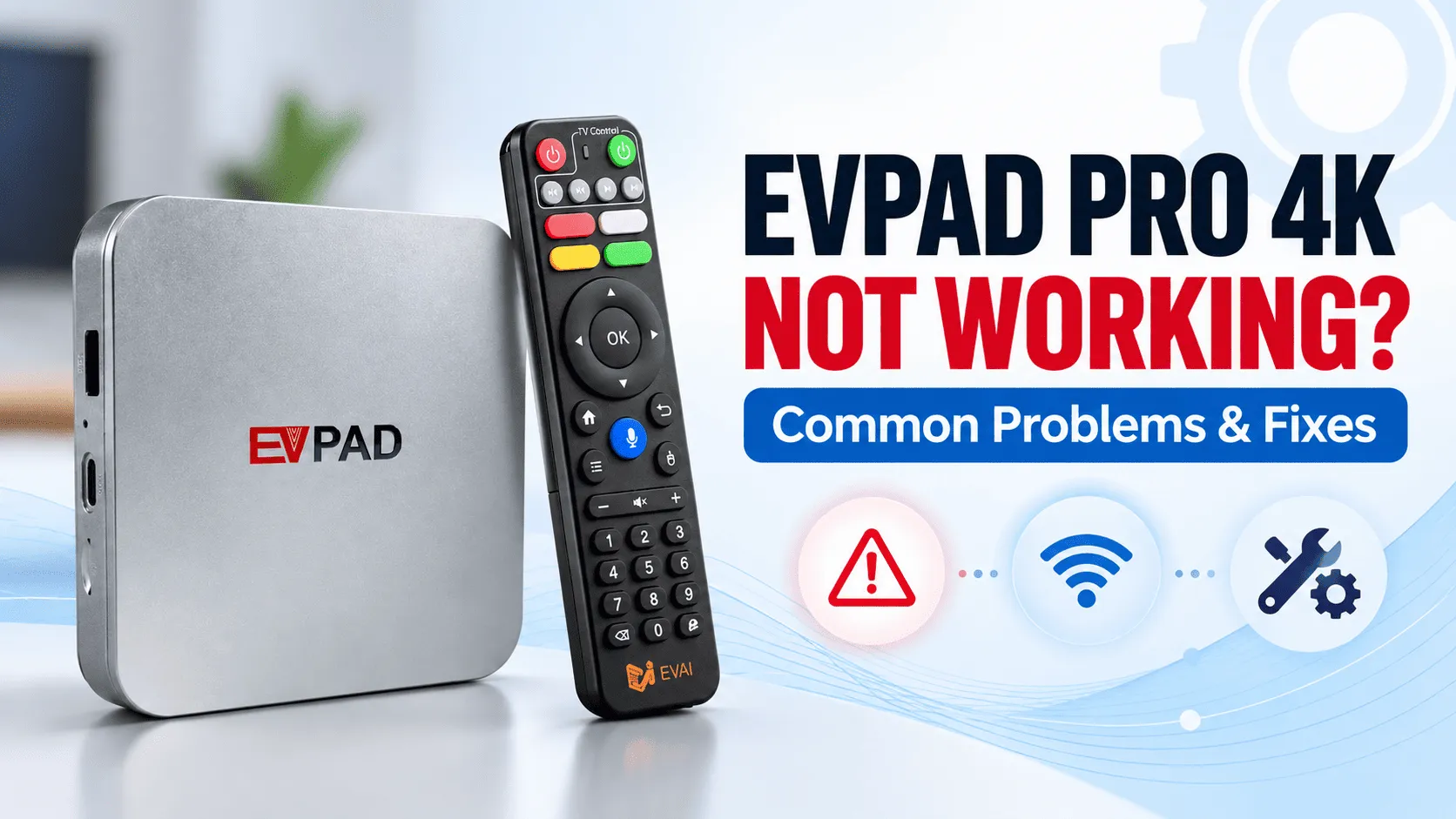
If your EVPAD Pro 4K is not working properly, the cause may be as simple as a network issue, an app error, or an HDMI connection problem. Before assuming the device is broken, it is worth checking a few common causes first.
This guide will show you the quickest ways to troubleshoot an EVPAD Pro 4K when apps do not open, channels fail to load, or the screen goes black. If you are looking for current EVPAD models and product information, visit our EVPAD Android TV Box Official Store.
Why Is My EVPAD Pro 4K Not Working?
An EVPAD Pro 4K can stop working properly for several reasons, and the problem does not always mean the device itself has failed. In many cases, the issue comes from the internet connection, a specific app, the HDMI connection, limited storage, or temporary system errors.
Because the EVPAD Pro 4K is an older model, software compatibility can also become a factor over time. Some newer apps or services may no longer work as smoothly on older system versions.
The quickest way to identify the cause is to check whether the problem affects the entire device or only one function. For example, if the Home Screen works but one app does not open, the issue is more likely related to that app. If multiple apps fail to load at the same time, start by checking the internet connection and system status.
How to Fix an EVPAD Pro 4K That Is Not Working
Start with the simplest checks first. This helps you identify whether the problem comes from the device, internet connection, display setup, or a specific app.
1. Restart the EVPAD
Turn off the EVPAD Pro 4K completely, disconnect the power for about 30 seconds, then reconnect it and start the device again. A full restart can clear temporary system errors, freezing, or apps that have stopped responding.
2. Check Your Internet Connection
If apps open but channels or online content do not load, check your Wi-Fi or Ethernet connection. Try opening another online app to see whether the issue affects the entire device or only one service.
If multiple apps cannot connect, restart your router and reconnect the EVPAD before testing again.
3. Check Power, HDMI, and Display Connections
If the TV shows a black screen or No Signal, make sure the EVPAD is powered on and the HDMI cable is firmly connected at both ends.
You can also try another HDMI port on the TV or a different HDMI cable to rule out a connection problem.
4. Check Available Storage
Low storage can cause apps to open slowly, crash, or fail to update. Check the device storage and remove unnecessary apps or files if the available space is very low.
5. Restart or Reinstall the Problem App
If only one app is not working, focus on that app instead of resetting the entire EVPAD. Close and reopen it first. If the issue continues, reinstall the app and test it again.
6. Check for Available App or System Updates
If an update option is available on your EVPAD or within the affected app, install the compatible update and restart the device afterward.
Avoid installing firmware or system files from unknown sources, as an incompatible update can create additional problems on an older EVPAD model.
EVPAD Apps or Channels Not Loading?
If the EVPAD Pro 4K turns on normally but apps or channels fail to load, the problem is usually related to a specific app, the internet connection, or a temporary service issue. The easiest way to narrow it down is to check how many apps are affected.
Only One App Is Not Working
If just one app fails to open or load content, the issue is more likely related to that app rather than the EVPAD itself. Restart the app first. If the problem continues, reinstall it and check whether an updated compatible version is available.
Multiple Apps Are Not Working
If several apps stop loading at the same time, check the EVPAD internet connection before reinstalling anything. Restart the router, reconnect Wi-Fi or Ethernet, and test again.
If the internet is working normally on other devices but multiple EVPAD apps still fail, restart the box and wait a short time before testing again.
Home Screen Works but Content Does Not Load
If you can navigate the Home Screen normally but channels or online content remain stuck on loading, the box itself may still be functioning correctly. In this situation, focus on the network connection, the affected service, or the app rather than the display hardware.
Frequently Asked Questions
Is EVPAD Down Today or Is It Just My Device?
If several apps or channels stop working at the same time, first check your internet connection and restart both the EVPAD and router. If the problem continues across multiple services while your internet works normally on other devices, it may be a temporary service-side issue rather than a fault with the box itself.
Could an Old Software Version Be Causing the Problem?
Yes, software compatibility can become an issue on older EVPAD models. Some newer app versions may not work properly with an older system. However, outdated software is only one possible cause, so check the network, app, and display connection before assuming a system update is required.
When Might the EVPAD Pro 4K Hardware Be the Problem?
A hardware issue becomes more likely if the device does not power on, repeatedly restarts, freezes even when no online apps are running, overheats unusually, or produces no video output after you have tested another HDMI cable and TV port.
If these symptoms continue after basic troubleshooting, the device may require further inspection or replacement.
Should I Factory Reset My EVPAD Pro 4K?
A factory reset should usually be treated as a last troubleshooting step. It may remove installed apps, saved accounts, and custom settings, so try restarting the device, checking the internet connection, and reinstalling the affected app first.
If you also use a newer EVPAD 12 and need to restore the interface after changing or resetting settings, see our guide on how to change the language on EVPAD 12.
Do These Fixes Also Work on Older EVPAD Models?
Many basic troubleshooting steps—such as restarting the box, checking Wi-Fi or Ethernet, testing the HDMI connection, and reinstalling a problem app—can also help with other older EVPAD models. Menu names and settings may differ between generations.
Conclusion
If your EVPAD Pro 4K is not working, start with the simplest checks: restart the device, test the internet connection, inspect the HDMI connection, check available storage, and troubleshoot any app that is failing.
If multiple apps still do not work after these steps, the issue may involve software compatibility, a temporary service problem, or aging hardware. Avoid factory resetting the device until the basic troubleshooting steps have been completed.